
UK & US guide
Calendly travel-time guide
How to add travel time between appointments in Calendly
A visit that ends at 10:00 leaves you late for a 10:15 booking if the drive takes twenty minutes. Calendly can hold a gap between bookings with a buffer. This guide gives the steps from Calendly's own help pages, checked on 5 October 2026, then shows what a fixed buffer can and can't do when every customer lives somewhere different.
Quick answer
Yes, with a buffer. Edit the event type, open More options, then Limits and buffers, and set buffer time before or after the meeting. Calendly lists buffers on all plans. The buffer is a fixed number of minutes. Calendly does not work it out from the customer's address, so pick a number from your real journeys and check each booking's address yourself.
The short answer: can Calendly add travel time?
Calendly has no setting called travel time. What it has is buffers: time held before or after a booking so nobody else can book it. Calendly's buffer guide lists them as available on all plans, and a post from Calendly's community team suggests using them for travel between in-person meetings.
A buffer is the same number of minutes every time. In that community post, from June 2025, a Calendly community manager wrote that there isn't any way right now to automatically determine the length of travel buffer needed between two addresses. So the answer is yes, you can add travel time, and you choose how much.
Calendly can still collect the address. Its location guide describes an Ask invitee option, which adds a location question to the booking page. The answer appears in the confirmation and the calendar event. It is there for you to read. The guide does not say it changes the times on offer.
Step by step: set a travel buffer in Calendly
These steps follow Calendly's help pages. Do them for each event type that happens at a customer's address.
Calendly's guide explains three things that catch people out. A before buffer and an after buffer stack between two bookings, so 15 and 15 hold 30 minutes. Buffers on bookings already made don't update when you change the event type. And a buffer doesn't stop a booking at the edge of your working hours: a visit can still be booked to end at closing time, with the buffer running past it.
- Go to the Scheduling page and find the event type. Open its menu and choose Edit.
- Choose More options, then open Limits and buffers.
- Choose Set buffer time. Add minutes before the meeting, after it, or both. For travel, most people use one side only, so the gap is easy to reason about.
- Save changes.
- In the Location section of the same event type, choose Ask invitee, so the customer types their address when they book.
- In the availability settings, set a minimum scheduling notice. A visit booked for an hour's time gives you no chance to check the drive.
- Open your booking link in a private window and book a test visit. Check the gap that appears in your calendar.
What a fixed buffer can't know
Here is an example with made-up distances and drive times. You do 45-minute visits and set a 20-minute buffer after each one. Three different customers book the slot after a visit.
The buffer is right for one journey out of three. On a day of short hops like the first row, four gaps leave 64 minutes unused. On a day with one journey like the third row, you are 18 minutes late, and the customer after that feels it too.
You can make the buffer bigger to cover the long drive. Then every short hop wastes more. You can make it smaller to tighten the day. Then the long drive hurts more. A fixed number has to be wrong for somebody.
| Next customer | Distance | Drive time | With a 20-minute buffer |
|---|---|---|---|
| A few streets away | 0.8 miles | 4 minutes | 16 minutes unused |
| Across town | 6 miles | 19 minutes | 1 minute spare, before packing up and parking |
| The next town, at school-run time | 11 miles | 38 minutes | 18 minutes late |
When a fixed buffer is enough
Plenty of mobile businesses run well on a buffer. If the list below sounds like you, set the buffer, check it once a month, and spend your time on something else.
A simple test: write down your drive times for one week. If the longest is within about ten minutes of the shortest, one number can cover them all without much waste.
- Your customers live in one compact area, so most drives are a similar length.
- You take a few bookings a day, and a spare quarter of an hour doesn't cost you a job.
- You work different areas on different days, and each area has its own event type and buffer. This is the tip Calendly's community post gives.
- You read each new booking's address anyway and don't mind moving the odd one.
- Most of your Calendly bookings are calls, and home visits are the exception.
When to use address-aware booking instead
The buffer stops being enough when your drives vary a lot, when you take many bookings a day, or when you find yourself checking a map for every booking. At that point the address needs to shape the times, not sit in a note.
CalMov is built that way. The customer enters their address first, and CalMov only offers times you can reach, allowing for the journey before and after each visit. On Pro, drive times come from the roads, with expected traffic. You can also set a service area by distance or drive time, so people outside it can't book.
Be clear about the plans. On the free Lite plan, CalMov uses a fixed travel gap that you set, which is the same idea as a Calendly buffer. The road-based drive times are on Pro, at £22 a month at the founder price and £29 as standard ($29 and $39 in the US), with a 14-day free trial and no card.
CalMov is not a replacement for everything Calendly does. It has no team routing, and Lite and Pro are for one person. Many people keep Calendly for calls and use CalMov for visits.
What happens when a booking moves
Moving a booking is where fixed buffers get forgotten. The buffer travels with the booking, but the drive changes, because the neighbours are now different customers at different addresses.
In Calendly, check both sides by hand whenever a visit is rescheduled. Look at the address before it and the address after it. Remember that a booking made before you changed your buffer still carries the old one. Calendly's guide says you can show buffers on the Meetings page and edit them there.
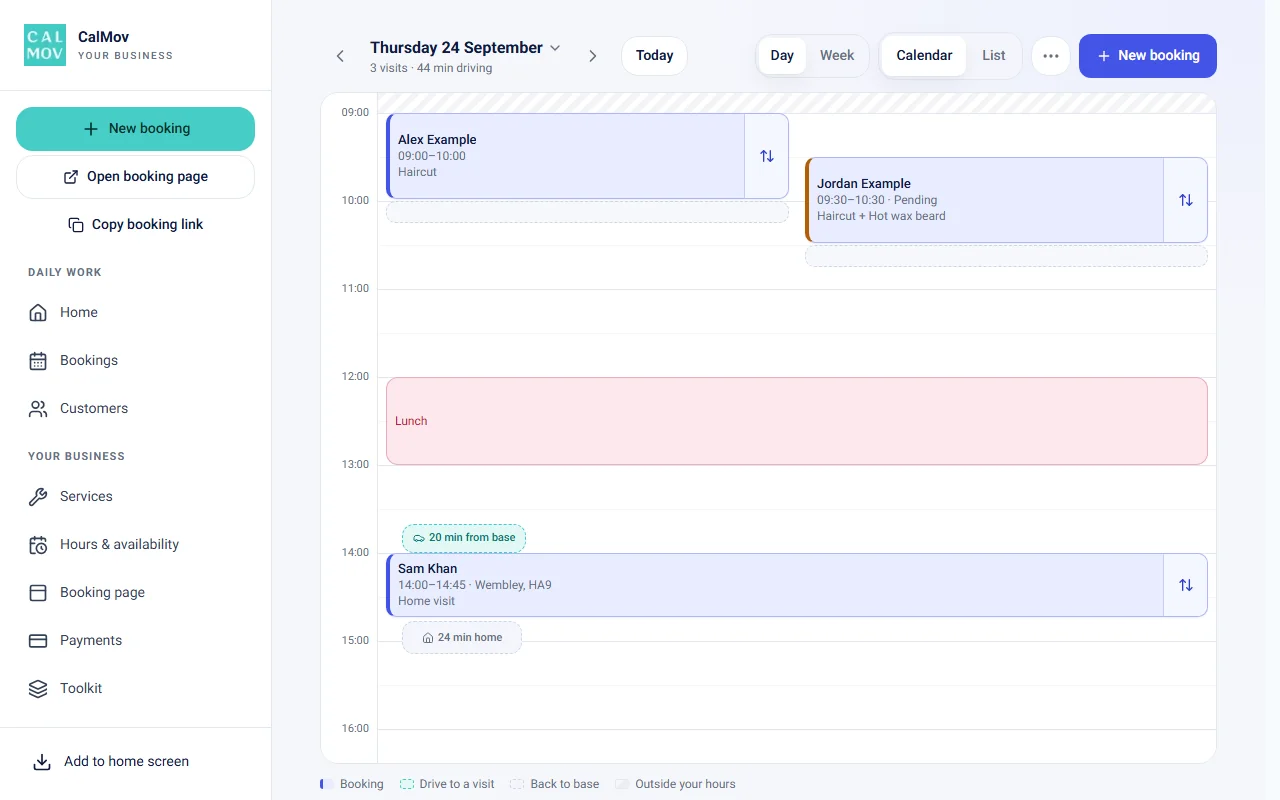
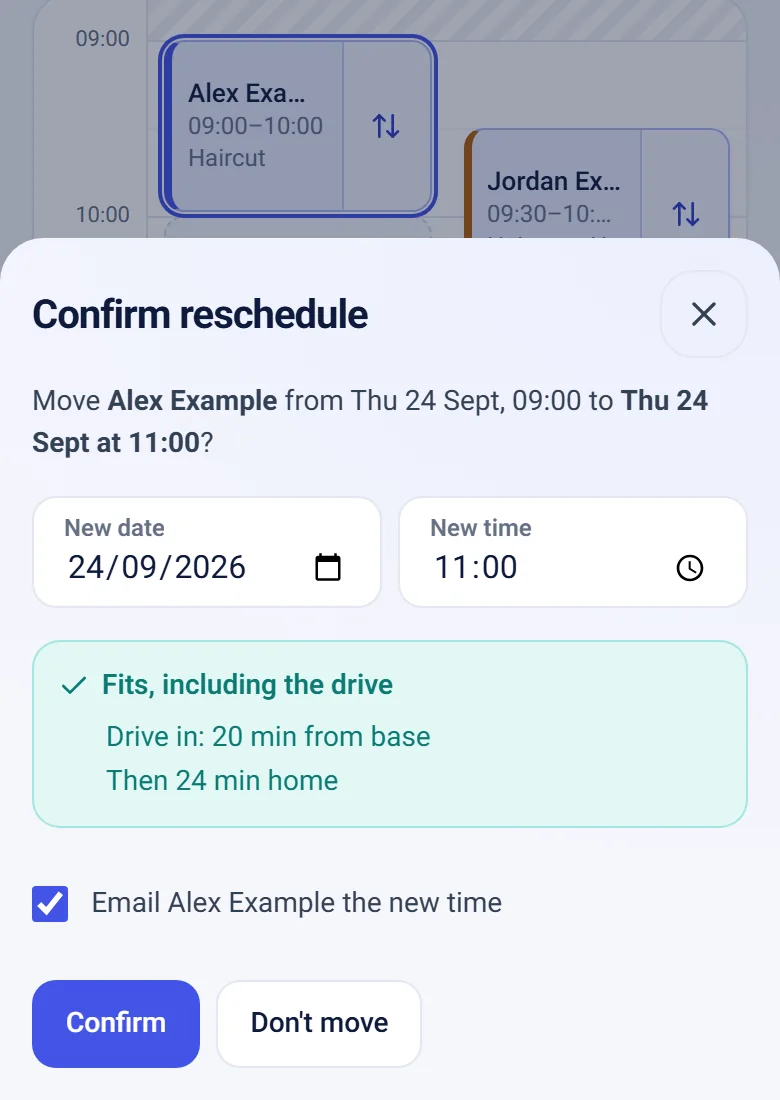
In CalMov, you drag the booking to a new time on the calendar, and it checks that the new time fits, including the drive. The calendar also shows the drive time between visits and the drive back to base, so a tight gap is visible before it becomes a late arrival.
Checklist to set it up either way
Whichever tool you use, the groundwork is the same: know your real journeys, protect the edges of the day, and test as a customer.
- Record a week of real gaps: packing up, driving, parking and walking in.
- In Calendly: set one buffer per event type from those records, not from your quickest trip.
- In Calendly: turn on Ask invitee for the location, and set a minimum scheduling notice.
- In Calendly: block the drive home in your calendar if you must be back by a set time, because the buffer can run past your working hours.
- In Calendly: after any change to buffers, check the bookings you already have.
- In CalMov: set your service area, minimum notice and booking window. On Lite, set your travel gap. On Pro, drive times are worked out for you.
- In either: book a test visit from a near address and a far one, on a phone, before you share the link.
- In either: look again in a month. Count late arrivals and wasted gaps, then adjust.
Frequently asked questions
Does Calendly have a travel time feature?
Not under that name. Calendly has buffers, which hold a fixed number of minutes before or after a booking. Calendly's community team suggests using them for travel. A community manager also wrote, in June 2025, that there isn't any way right now to work out the buffer needed between two addresses automatically.
Do Calendly buffers work on the free plan?
Calendly's buffer guide lists buffers under all plans, with a note that feature access may vary. Its pricing page shows one event type on the Free plan, so you get one buffer setting for everything you offer.
Should I use a before buffer, an after buffer, or both?
For travel, one side is usually enough. Calendly's guide says before and after buffers stack between two bookings, so 15 minutes each side holds 30 minutes. If you use both, do it on purpose and check the gap in your calendar.
Does changing a buffer update bookings I already have?
No. Calendly's guide says buffers on scheduled meetings don't update automatically when you change the event type. Bookings made earlier keep the old rule. Check them one by one after any change.
Does asking for an address mean travel is being calculated?
No. Collecting an address and using it to work out available times are two separate things. Calendly's Ask invitee option collects the location and shows it to you. To see what any tool does, book two test visits into the same gap from a near address and a far one.
How do I know whether my buffer is too large?
Compare it with a week of real gaps, including packing up and parking. If you often arrive with ten minutes or more to spare, it is too large for those journeys. If you are late more than now and then, it is too small. If both happen in the same week, a single number is the problem.
Sources and further reading
Sources used to check this guide. Check the linked guidance for current requirements, features and prices.
- Calendly: buffer settings and their effect on availability — Calendly
- Calendly: how to set the location for your event type — Calendly
- Calendly: how to fine-tune your availability settings — Calendly
- Calendly Community: using buffers for travel time — Calendly
- Calendly pricing and plan limits — Calendly
How CalMov helps
CalMov combines service duration, working availability and customer location to help mobile businesses offer bookable times that allow for the surrounding journeys.
Explore travel-time appointment scheduling